









 Walrus staking

How to liquid stake WAL on Haedal with Phantom
Our WAL staking tutorials provide comprehensive guides on how to liquid stake WAL on . Are you ready to unlock your liquidity?
Follow this step by step below

Connect your wallet
Go to the Haedal official page and click Connect Wallet. In this example we’ll use Phantom, so select Phantom. If you don’t have a Phantom wallet yet, you can create one from scratch by following our tutorial.
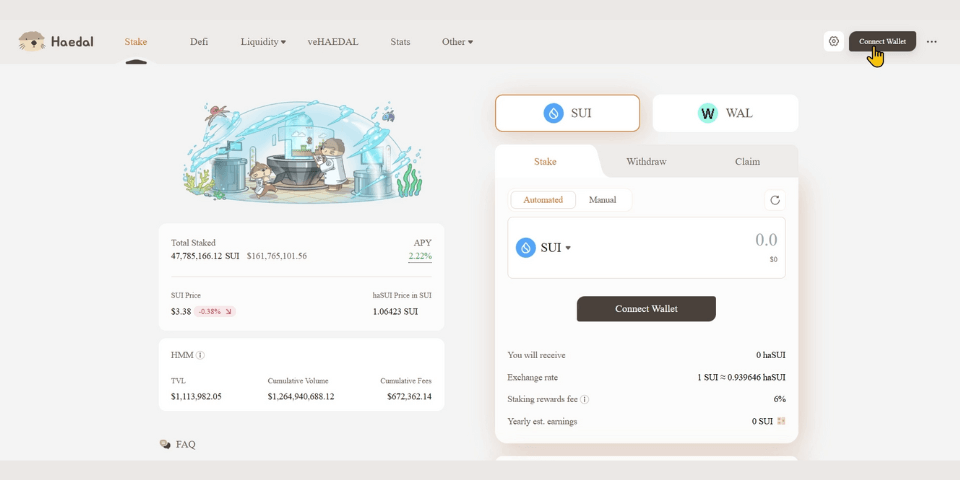
Step 1 of the Walrus tutorial for staking using Phantom on Haedal

Stake WAL
Click WAL and you’ll see two options for staking:
- Automated: your tokens are automatically delegated to the validators suggested by Haedal.
- Manual: you choose the validator yourself.
In this tutorial we’ll use Manual, so select Manual.
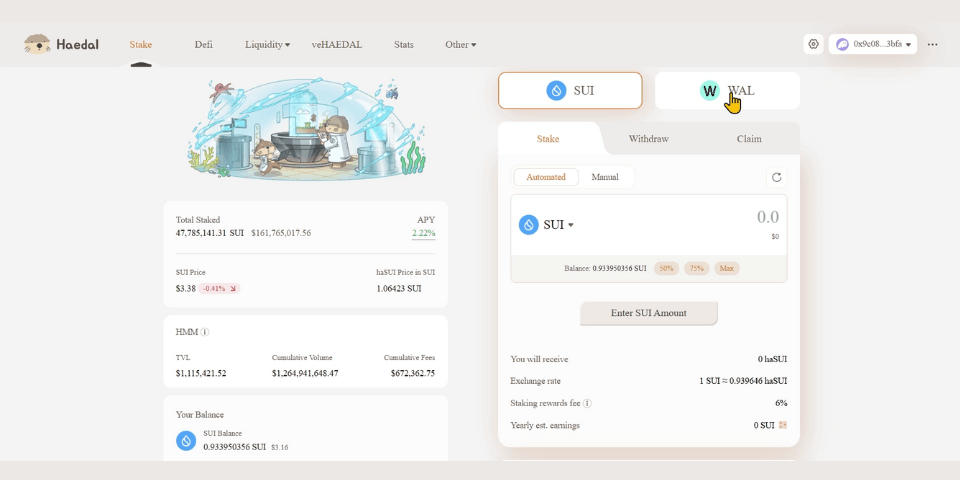
Step 2 of the Walrus tutorial for staking using Phantom on Haedal

Select the amount and choose Stakely
Enter the amount of WAL you want to delegate. Then click Choose a Validator and select Stakely as your validator.

Step 3 of the Walrus tutorial for staking using Phantom on Haedal

Confirm the transaction
Click Stake WAL and approve the transaction in Phantom.
When you delegate WAL on Haedal, you’ll receive haWAL, a token whose value increases relative to your staked WAL as rewards accumulate. You can also use haWAL in DeFi protocols to earn additional yields—just make sure to assess the risks of each protocol.

Step 4 of the Walrus tutorial for staking using Phantom on Haedal
Join our community
Discover more about us and stay connected with the latest updates and community insights


